Cloud storage choices become less confusing when you start with the work that has to happen around a file. Instead of looking for a universal winner, identify who owns the file, who needs to change it, how long access should last, and how you would recover after a mistake. Those questions make a comparison between Google Drive and Dropbox practical without treating either product as the answer for every person.
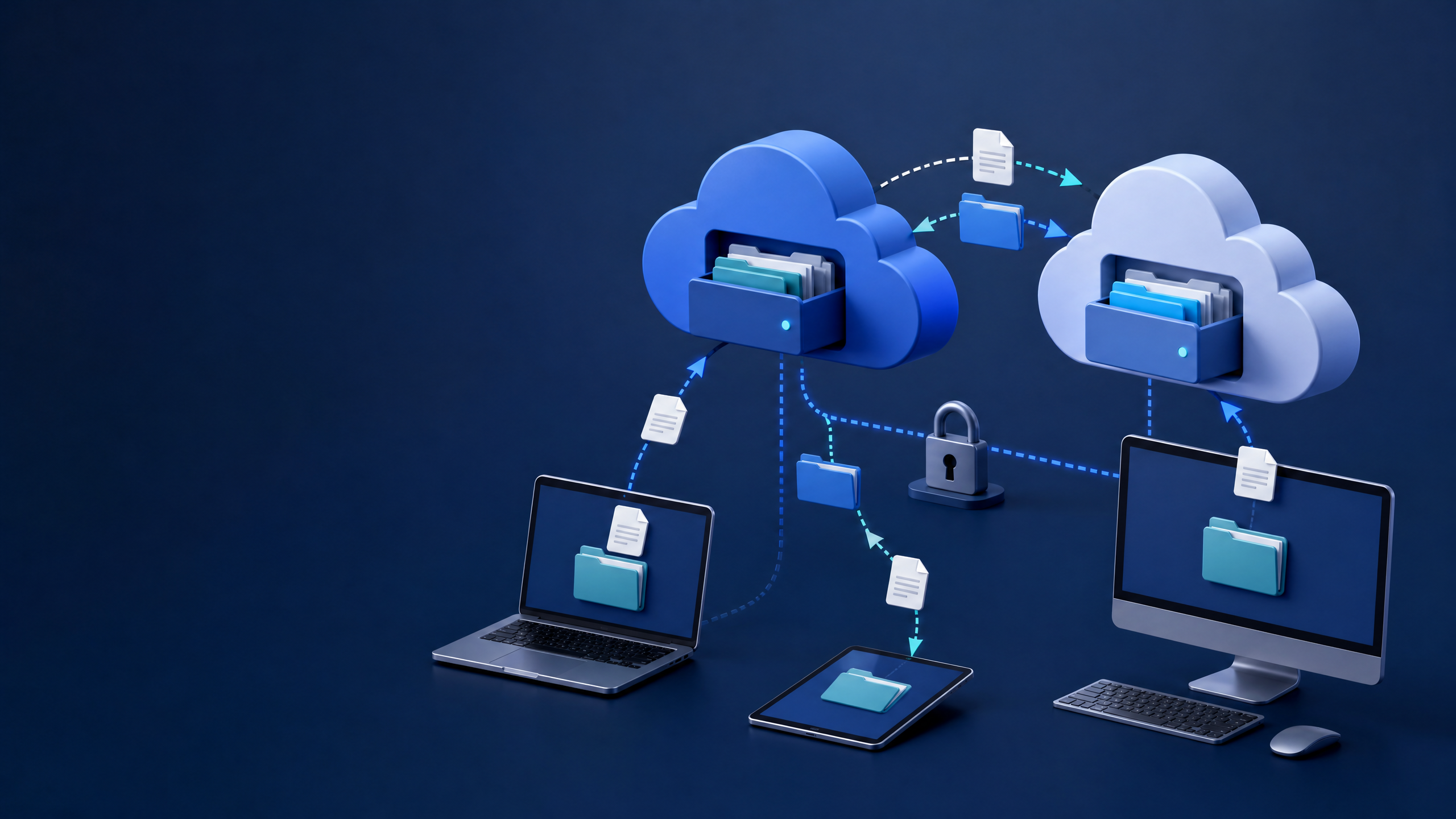
1. Start with the place where work already happens
Google Drive is closely connected to Google Workspace. Its official overview describes a workflow where people upload, open, share, edit, and organise files across devices, with access roles such as viewer, commenter, and editor. For a team that already drafts documents, spreadsheets, and presentations in Workspace, that starting point may reduce hand-offs between applications.
Dropbox describes its service as a central place for storage, file sharing, and synchronisation across devices. That can suit a workflow where files come from many desktop applications or where the main question is how to keep a shared folder and its local copies organised. The useful distinction is not a claim that one service is faster or better. It is whether your daily work depends more on native document collaboration or on keeping a mixed set of files available and orderly.
2. Draw an ownership and access map before you move files
Make a small list for one real project. Write down the owner, the people who may edit, the people who only need to comment or view, and the point when access should end. Then create a test folder and use the narrowest role that still lets each person do their work. A viewer should not receive editing rights simply because that is quicker at the time.
For teams using Workspace, shared drives can help keep team material associated with the team rather than one individual account. For any service, check the sharing screen again after inviting someone: confirm the person, the role, and whether a public link was created accidentally. This habit supports the same basic discipline discussed in our guide to everyday cybersecurity habits: access should be deliberate, limited, and reviewed.
3. Test recovery before you rely on a folder
Recovery is a workflow, not a promise. Put a clearly labelled test file in a non-sensitive folder, make a harmless edit, and check how you can find the activity record, restore a prior version if your account offers it, and restore a recently deleted file. Google’s Drive Help explains how to recover files from Trash. Dropbox’s official storage information explains that recovery and version history are available for defined periods that vary by account type. The important outcome is to know your own account’s limits before a real mistake occurs.
Do not use this test to upload credentials, identity documents, customer data, or any file that should not be shared. If a file contains personal information, first decide whether it needs to be in a shared folder at all. The same question is useful when deciding what information to provide to AI-enabled services; see our checklist for personalised AI and digital identity.
4. Use a short security checklist
- Turn on two-step verification for every account that can open the folder.
- Use a unique password and keep recovery details current.
- Review linked devices and remove a device you no longer control.
- Check shared links periodically and remove access when a project ends.
- Keep a separate backup plan for files whose loss would seriously disrupt work.
These steps matter more than a feature list. Encryption, sharing controls, and recovery tools help only when the account owner uses them carefully. For example, a shared link sent to the wrong address can still expose a file even when the storage provider has strong infrastructure controls.
5. Run a fifteen-minute pilot with the people who will use it
Create one temporary folder. Ask one collaborator to upload a file, leave a comment, make a permitted edit, and then stop having access after you remove the permission. Try the same tasks from the desktop and mobile devices your team actually uses. Record what was confusing: a file that was hard to locate, a role that was unclear, a duplicate copy, or a recovery step that nobody could find.
After the pilot, choose the setup that reduces those repeated points of friction. A small team may decide that a Workspace-centred collaboration flow is clearer. Another team may prefer a shared-file workflow that fits its existing desktop tools. Both conclusions are reasonable when they come from an observed task rather than a marketing claim, a price snapshot, or a generic ranking.
What this checklist does and does not decide
This checklist helps you compare file ownership, permissions, recovery, and everyday collaboration. It does not recommend a plan, predict prices, guarantee security, or replace an organisation’s legal, privacy, or records-retention requirements. If your workplace handles regulated or highly sensitive data, confirm the approved tools and access rules with the person responsible for security or compliance before moving files.
Official sources
- Google Drive: official product, collaboration, and access-management overview
- Google Drive Help: recover a deleted file
- Dropbox: official cloud storage, sharing, and file-recovery overview
Subscribe to Our Newsletter
Get the latest articles on Tech, Finance & more delivered to your inbox. No spam, ever.
We respect your privacy. Unsubscribe anytime.




About the Author
World Daily Editorial Team
The World Daily Editorial Team covers global news, travel, technology, finance, and health. Our writers research and curate the most relevant stories from around the world to keep you informed and inspired.